
Event creation
Effortless Event Management for Any Event Type
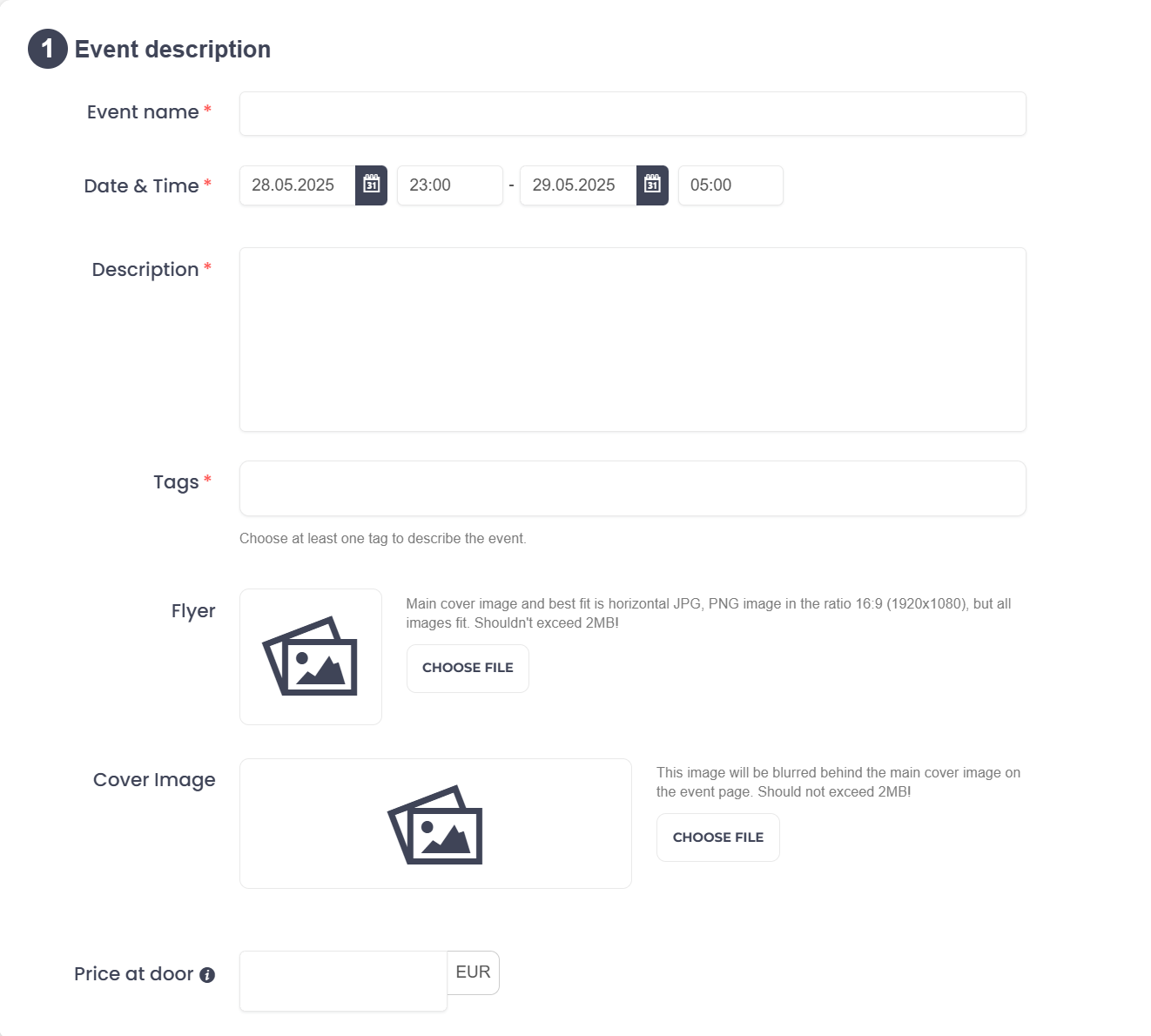
1️⃣ Event Description
-
Event Name: Provide a clear, catchy name for your event.
-
Date & Time: Select the start and end dates/times for your event.
-
Description: Add a detailed description to entice attendees and clarify what the event is about.
-
Tags: Include relevant keywords to help users find your event.
-
Flyer & Cover Image: Upload high-quality images to visually represent your event.
-
Price at Door (Optional): Enter the highest door price that is charged at the door during the event if applicable. We use it to show the discount.
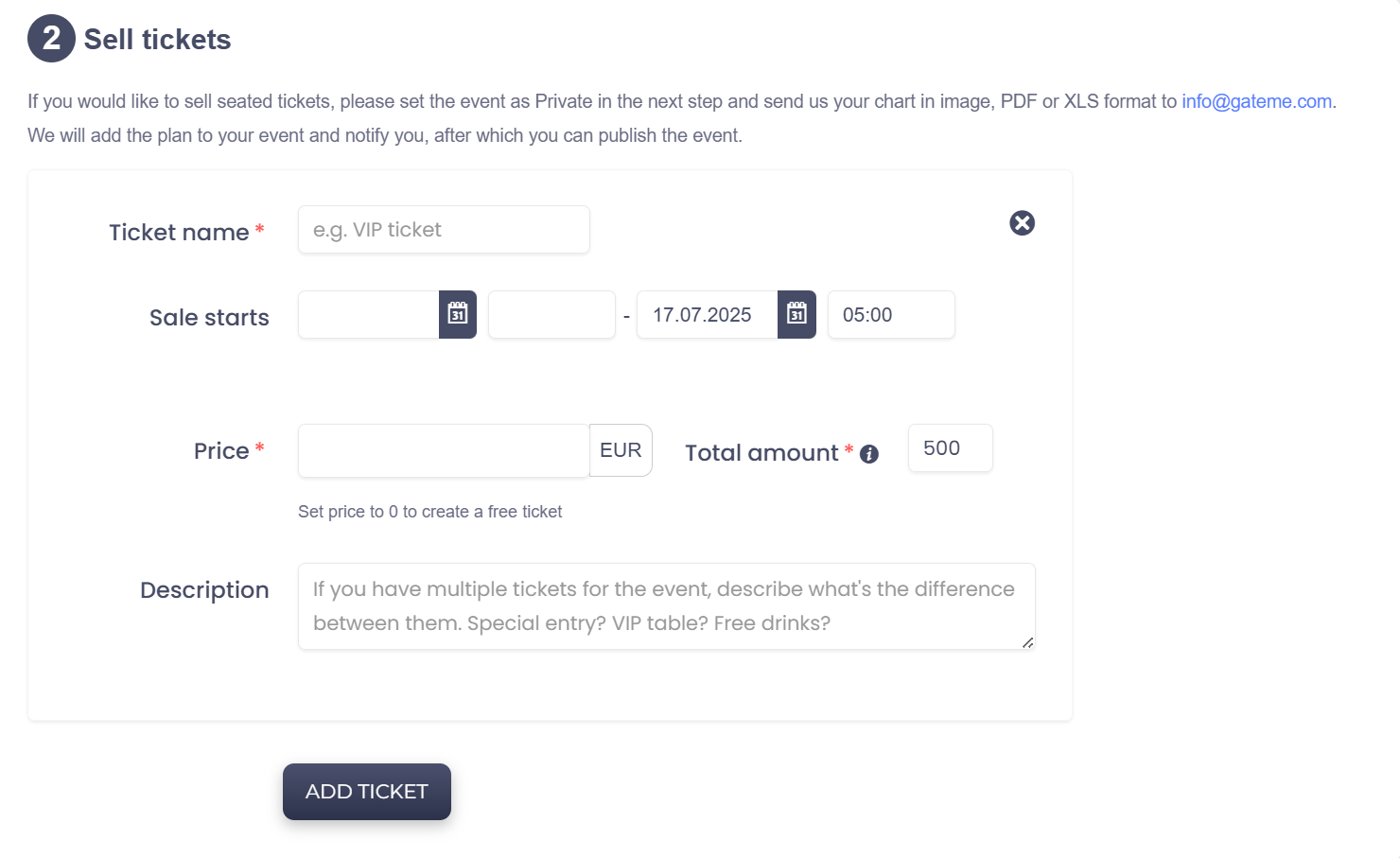
2️⃣ Sell Tickets
-
Ticket Name: Name the ticket (e.g., “VIP Ticket”, “Early Bird”).
-
Sale Starts: Choose when ticket sales begin.
-
Price & Total Amount: Set the price (or 0 for free tickets) and how many tickets are available.
-
Description: If you have multiple ticket types, clarify what makes each one special.
💡 If you want to sell seated tickets, set the event as “Private” in the next step and send your seating plan (JPEG/PNG, PDF or XLS format) to info@gateme.com. We’ll add it to your event and notify you when it’s ready—after that, you can publish it.
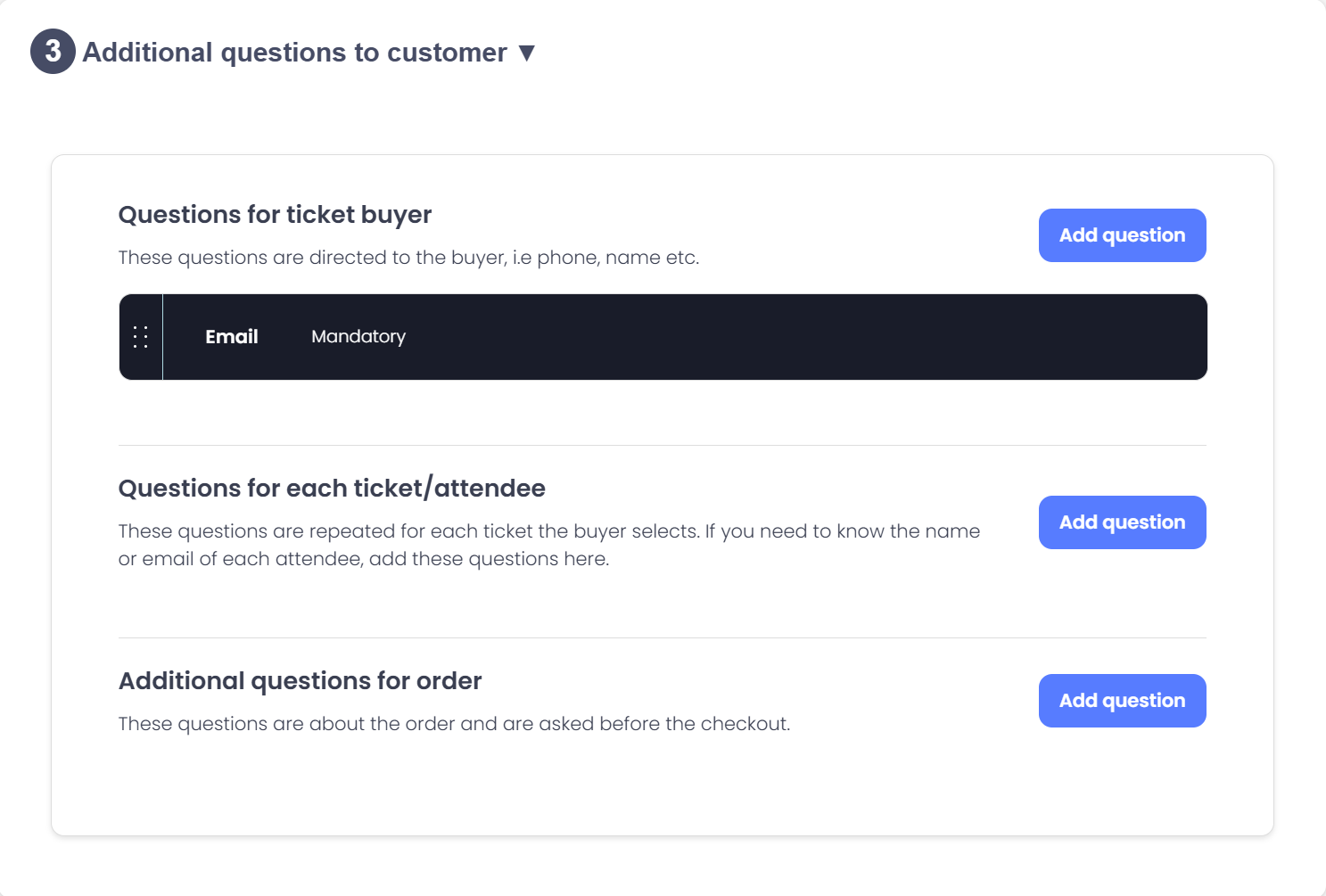
3️⃣ Additional Questions to Customer
If you’d like to collect more information from attendees, you can add custom questions at different levels:
📩 Questions for Ticket Buyer
Examples: Email, phone number – directed at the person making the purchase.
👤 Questions for Each Ticket/Attendee
Repeated per ticket – useful for gathering names, dietary preferences, etc.
📦 Order-Level Questions
One-time questions for the entire order, such as arrival time or group notes. These appear before checkout.

4️⃣ Public or Private?
-
Decide if your event should be listed publicly on GateMe or kept private.
💡Public events are discoverable via search and recommendations. Private events can only be accessed through a direct link.
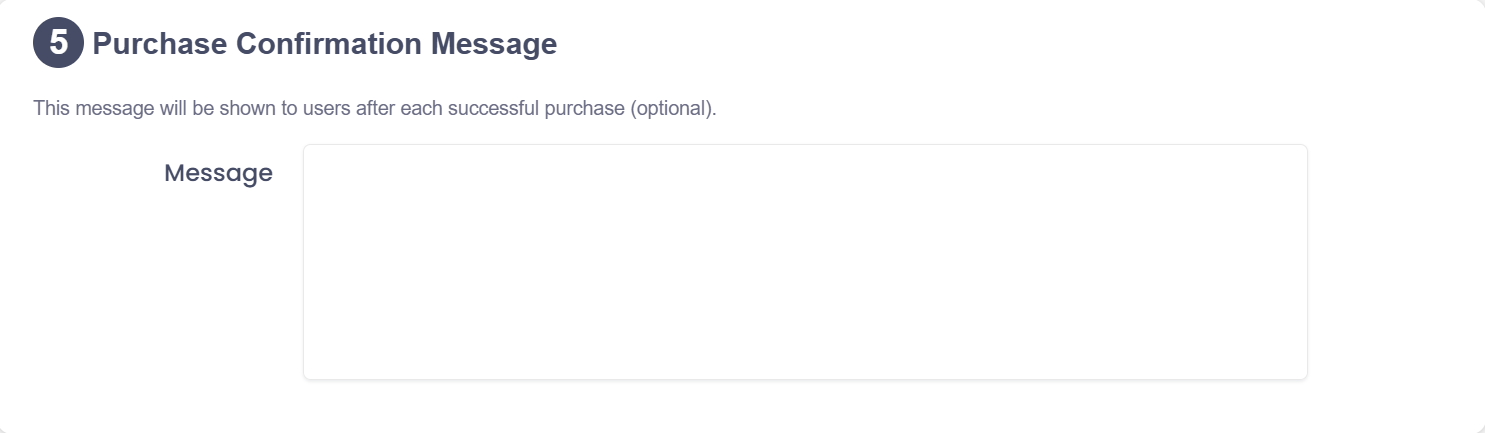
5️⃣ Purchase Confirmation Message (Optional)
💬 This message will be displayed to users after each successful ticket purchase or registration.
Use this space to thank them or provide important next steps (e.g., “Thank you for your purchase! See you on July 20th – enter through Gate B at 6 PM.”)
✅Once all fields are filled in, click the green CREATE EVENT button to publish your event.
For Event Organizers
Event Creation
Marketing Tools
Reports
Payouts
Marketing&Tracking
Promote Event
Promoters
Seated Tickets
Promo Codes
Permanent Lists
Additional Questions
Check-In Guests
Staff&Users
Free Tickets
Refunds
Database
Guest Lists
For Ticket Buyers
Recover Your Tickets