
Promoters
Effortless Event Management for Any Event Type
Managing Promoters in GateMe
The “Promoters” section in the GateMe admin panel allows organizers to assign, edit, activate, or deactivate promoters for specific events. This functionality is key for enabling promoter guest lists, setting commissions, and managing access per event.
🧭 Accessing the Promoters Page
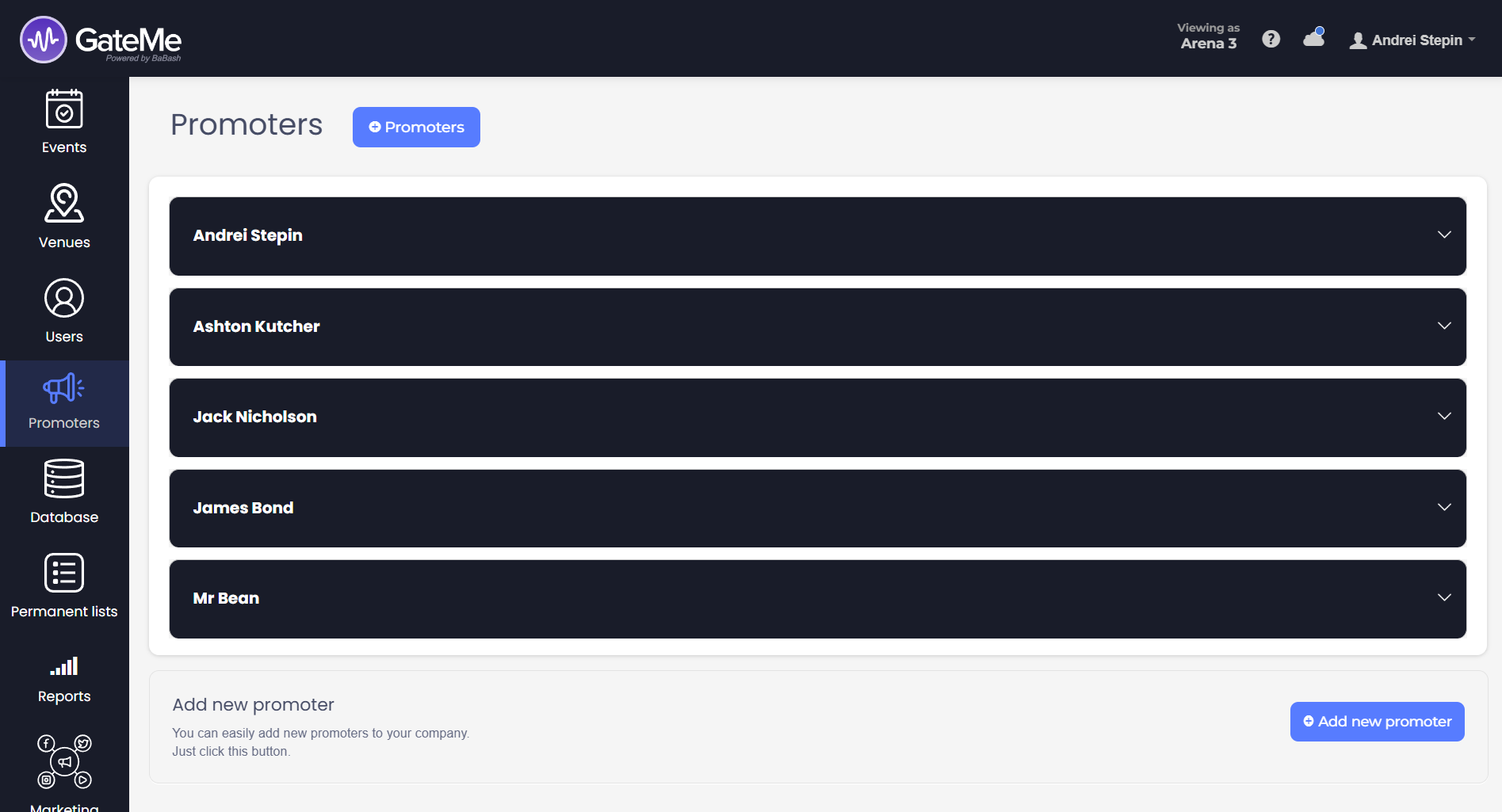
To manage all promoters across events:
-
Go to the left sidebar of the GateMe admin panel
-
Click on Promoters
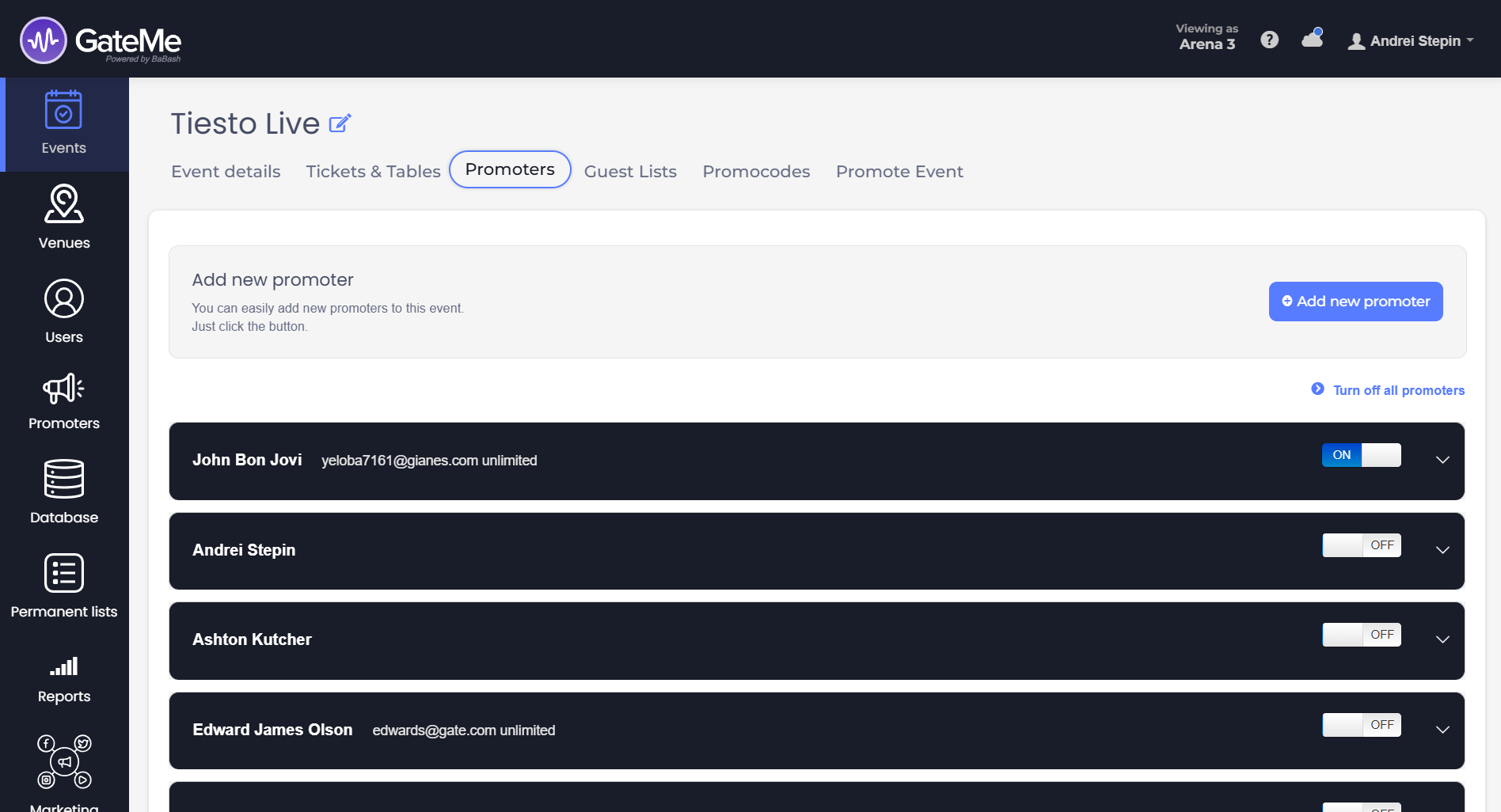
To manage promoters for a specific event:
- Go to Events in the sidebar
- Select your event
- Click Edit event
- Navigate to the Promoters tab in the header
➕ Adding a New Promoter
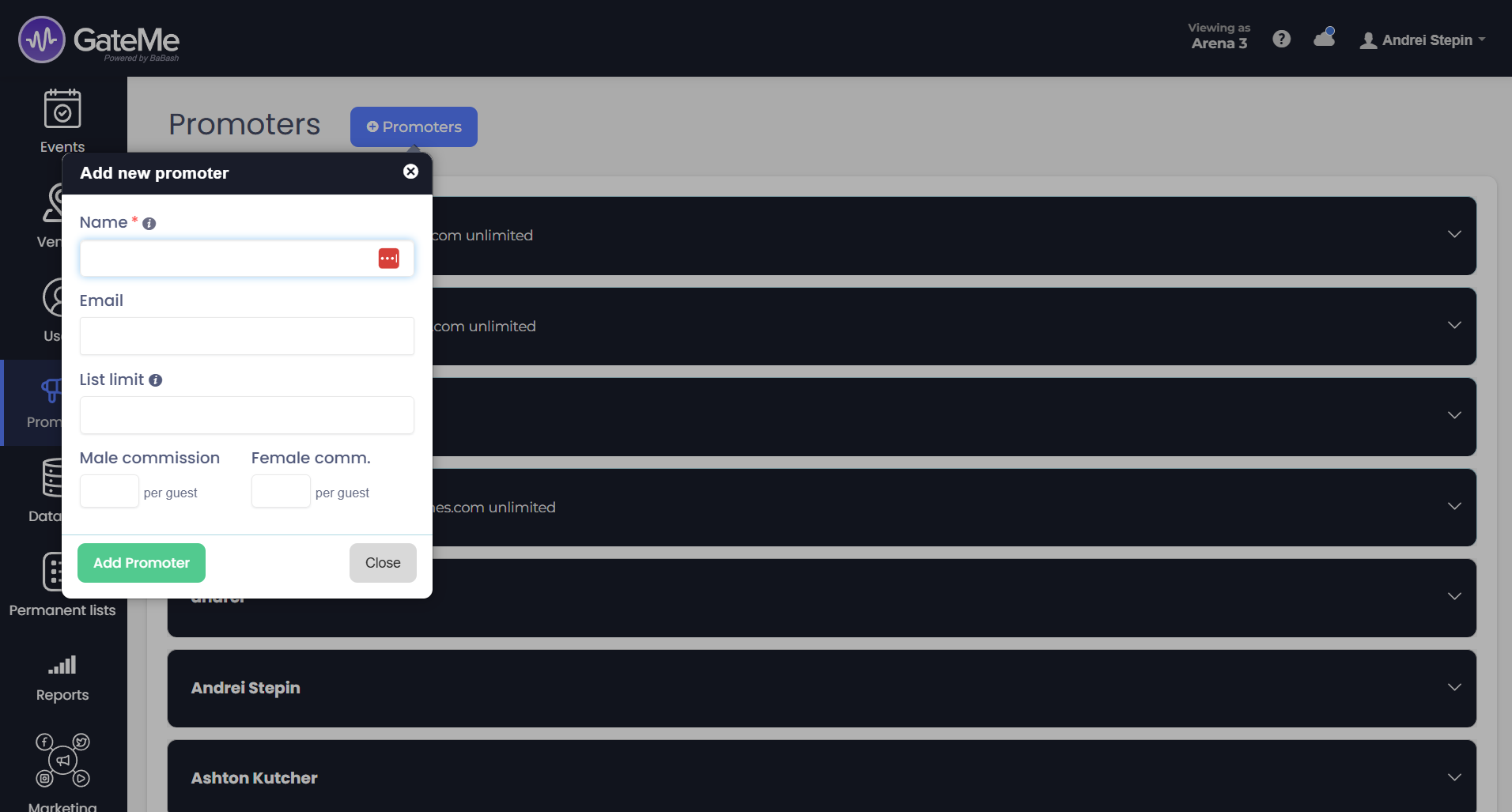
1. On either the general Promoters page or within a specific event’s Promoters tab, click Add new promoter.
2. Fill out the following fields:
-
Name
-
Email
-
List limit – specify the guest limit or leave empty for unlimited amount
-
Commission per guest – choose commission for male and female guests
3. Click Add Promoter to save.
Once added, the promoter appears in the list and can be enabled per event.
🔁 Activating or Deactivating a Promoter for an Event
Each promoter added globally must be activated manually for specific events.
To enable or disable:
1. Go to the event’s Promoters tab.
2. Use the ON/OFF toggle next to each promoter’s name.
-
ON: The promoter can add guests to their guest list for the selected event.
-
OFF: Disables their guest list for the event.
-
When switching OFF, a confirmation dialog will appear warning that deactivation deletes the associated guest list (if any).
-
3. To disable all promoters for the event at once, click Turn off all promoters.
✏️ Editing or Removing a Promoter
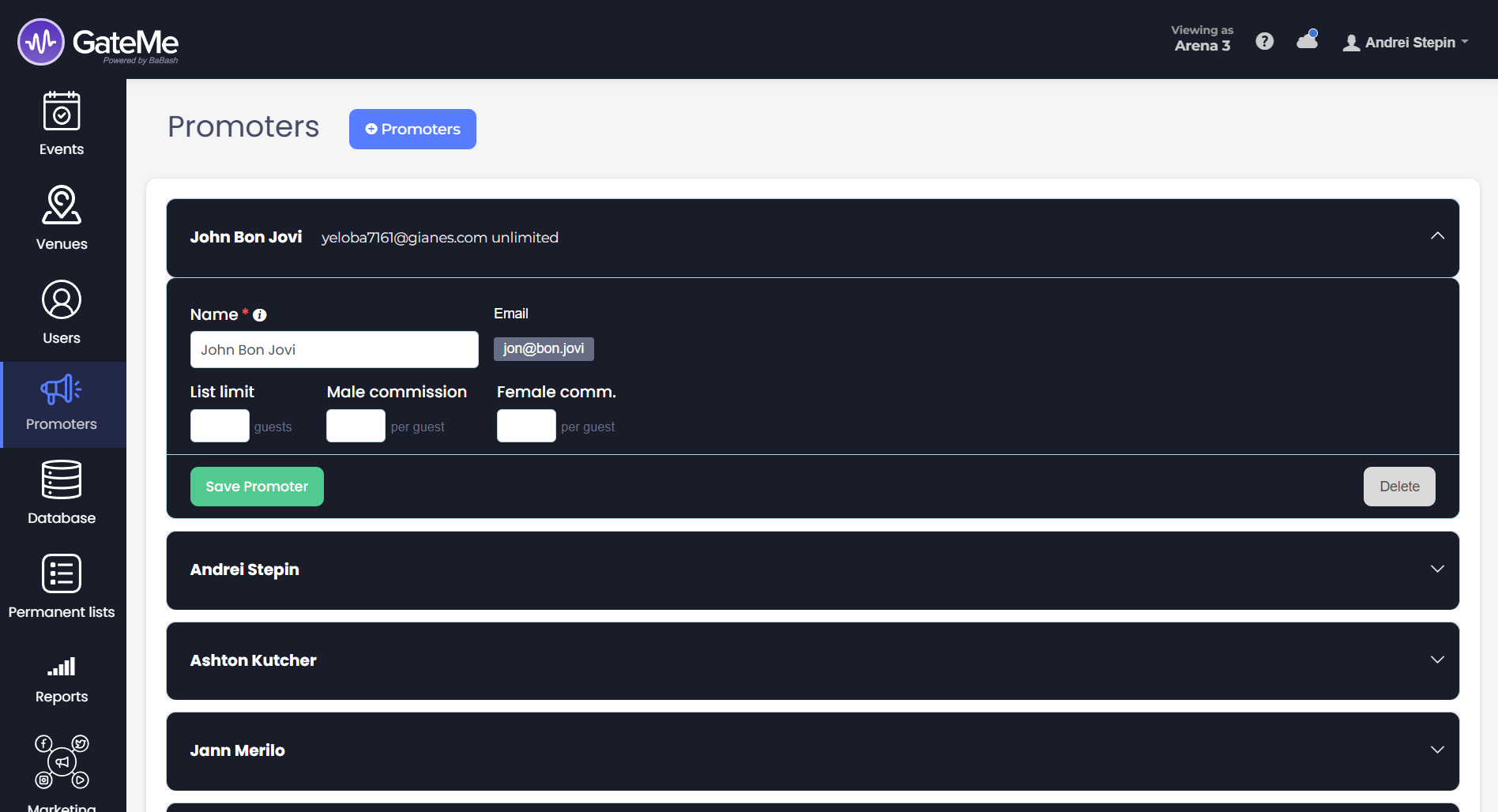
Edit: To update a promoter’s details (like name, list limit, or commissions), click on their name from the Promoters page to expand their profile. Make your changes and then click Save Promoter.
Delete: If you want to permanently remove a promoter from your system:
-
Expand the promoter’s card on the Promoters page.
-
Click the Delete button on the bottom right.
-
A confirmation popup will appear asking “Are you sure you want to delete this promoter?”
-
Click OK to confirm, or Cancel to abort.
⚠️ Deleting a promoter will completely remove them from your account, including any linked information such as email, commission settings, or list limits. This action is irreversible.
For Event Organizers
Event Creation
Marketing Tools
Reports
Payouts
Marketing&Tracking
Promote Event
Promoters
Seated Tickets
Promo Codes
Permanent Lists
Additional Questions
Check-In Guests
Staff&Users
Free Tickets
Refunds
Database
Guest Lists
For Ticket Buyers
Recover Your Tickets